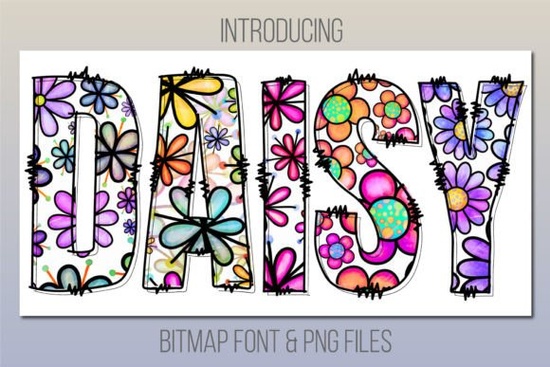
If you're looking for a fun, playful typeface that brings a fresh, handcrafted feel to your projects, Daisy Font is worth a close look. This colorful font combines the charm of a hand-drawn daisy print with a lively, jolly spirit perfect for adding a cheerful touch to almost any design. But before you download, it's important to understand exactly what you're getting and how to use it.
What makes Daisy Font different from regular fonts?
Unlike standard digital fonts that only contain solid black letterforms, Daisy Font is a color font (also known as a bitmap font). That means each character is a pre-made image with multiple colors, shading, and texture built right in. When you type with it, you instantly get a vibrant daisy pattern without having to create the effect yourself. It’s like having a ready‑to‑use graphic for every letter.
This makes it incredibly efficient for print-on-demand items, greeting cards, party invitations, children’s book covers, and any project where you want a playful, handcrafted look. Because it's a color font, you don’t need to layer vector shapes or apply brushes just type and you're done.
Which software can I use Daisy Font with?
Because it’s a color bitmap font, compatibility is limited. Daisy Font works natively in Photoshop CC 2017, Illustrator CC 2018, InDesign CC 2019 or newer versions, and certain macOS apps such as Fontbook, Pages, and Keynote. If you use Windows or older Adobe software, you may not see the color letters.
But don’t worry the product includes a bonus PNG file containing each letter as a separate high‑resolution image. You can paste those PNGs into any program that supports images, including Canva, Procreate, or even Microsoft Word. This is a lifesaver for designers who don’t have the exact Adobe versions required.
Can I use Daisy Font with Cricut Design Space?
Short answer: no. The product description clearly states that Daisy Font is NOT compatible with Cricut Design Space. Cricut’s software does not support color bitmap fonts. However, you can still achieve a similar look by importing the supplied PNG files of each letter and arranging them manually on your canvas. It takes a little extra time, but the result can be just as charming.
If you primarily work with a Cricut or Silhouette machine and need a similarly playful color font that is compatible, check out the Groovy Crayon Font – it’s another colorful option that works differently but gives a lively hand‑drawn feel.
What project ideas work best with Daisy Font?
Because of its bright, happy daisy pattern, this font shines in projects aimed at children, summer events, or nature‑themed designs. Here are a few ideas to get you started:
- Party invitations – garden parties, baby showers, birthday parties for kids or adults who love daisies.
- Greeting cards – “Get well soon,” “Thinking of you,” or “Happy birthday” cards with a sunny vibe.
- Print‑on‑demand products – t‑shirts, mugs, tote bags, or phone cases with a single word or monogram.
- Social media graphics – quotes, seasonal posts, or branding for a flower shop or children’s boutique.
- Scrapbooking or journaling – use the PNG files to create custom stickers or lettering for memory books.
- Classroom materials – bulletin board headers, name tags, or worksheets that need a friendly, colorful touch.
If you love the daisy aesthetic but want a simpler, non‑color outline version for layered projects, you might also enjoy browsing other colorful font options available on Creative Fabrica.
How do I install and use a color font like Daisy Font?
Installing Daisy Font is similar to installing any font, but you need to make sure your software supports color fonts. Here’s a quick run‑down:
- Download the font file (usually a .otf or .ttf) and the bonus PNG folder.
- Install the font on your system (double‑click and click “Install” on Windows or use Font Book on Mac).
- Open your supported app – Photoshop, Illustrator, InDesign, Pages, etc.
- Select the Daisy Font from the font menu. Start typing – the color letters should appear automatically.
- If you’re using the PNG files instead, simply drag and drop each letter image into your design and position them manually.
One tip: When working with the font in Adobe programs, make sure your document’s color mode is set to RGB (not CMYK) for the best color reproduction. Also, avoid applying type effects like drop shadows to the font layer directly – instead, convert the text to a smart object first to preserve the color bitmap quality.
Practical checklist before you download Daisy Font
- ✔ Check that you have one of the supported programs: Photoshop CC 2017+, Illustrator CC 2018+, InDesign CC 2019+, or a macOS app (Fontbook, Pages, Keynote).
- ✔ If you work with Cricut or other cutting machines, plan to use the included PNG files instead of the font.
- ✔ Make sure your printer (if printing at home) can handle high‑resolution color images – the PNG files are 300 dpi.
- ✔ Test the font in a small project first to see how the daisy pattern looks at different sizes.
Once you’re ready, grab Daisy Font and start adding a sunny, playful touch to your designs. For even more colorful inspiration, don’t forget to explore the Groovy Crayon Font – it’s another fun option that works great for projects needing a bright, handcrafted feel.
Try It Free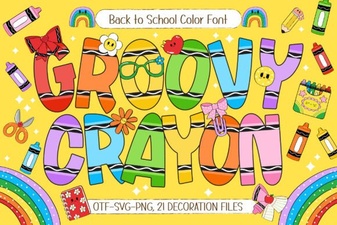 Groovy Crayon Font: Playful Designs and Creative Projects
 Shina Qatline Font: Creative Uses & Design Ideas
 The Butterfly Inside Font for Creative Design Projects
 Crafting Design with Strong Steel Fonts
 Sparky Dream Font: Creative Projects & Usability Guide
 The Legacy College Font: Classic Style Guide